Changelog
Now create Non-Linear Presentations with Interactions in IdeaBoard
New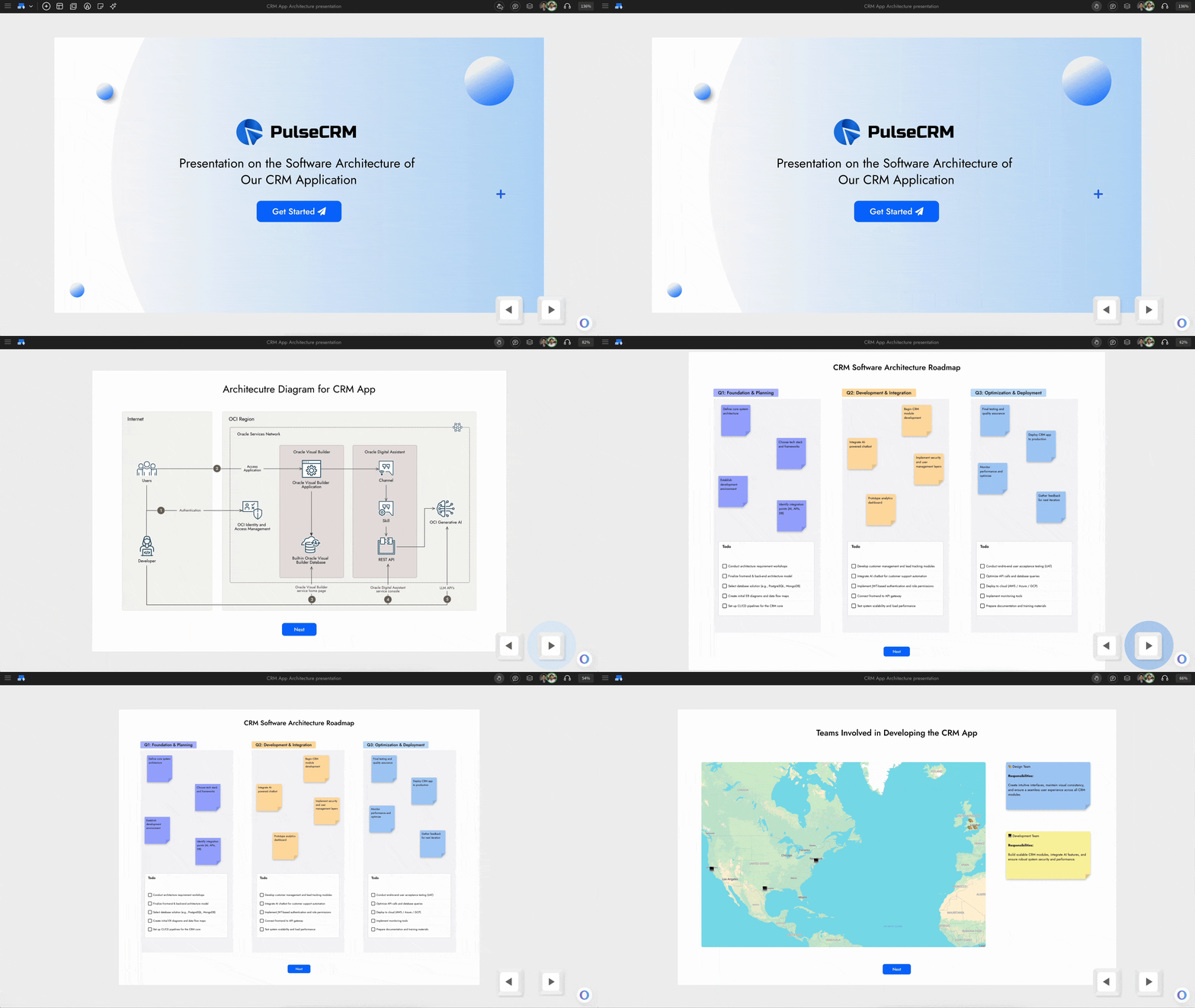
IdeaBoard now introduces interactive navigation between components, letting you craft dynamic, non-linear presentations with smooth zoom and scroll transitions. Engage your audience or team by turning any whiteboard into a clickable, guided experience perfect for storytelling, brainstorming walkthroughs, or product demos.
How to Add Interactions
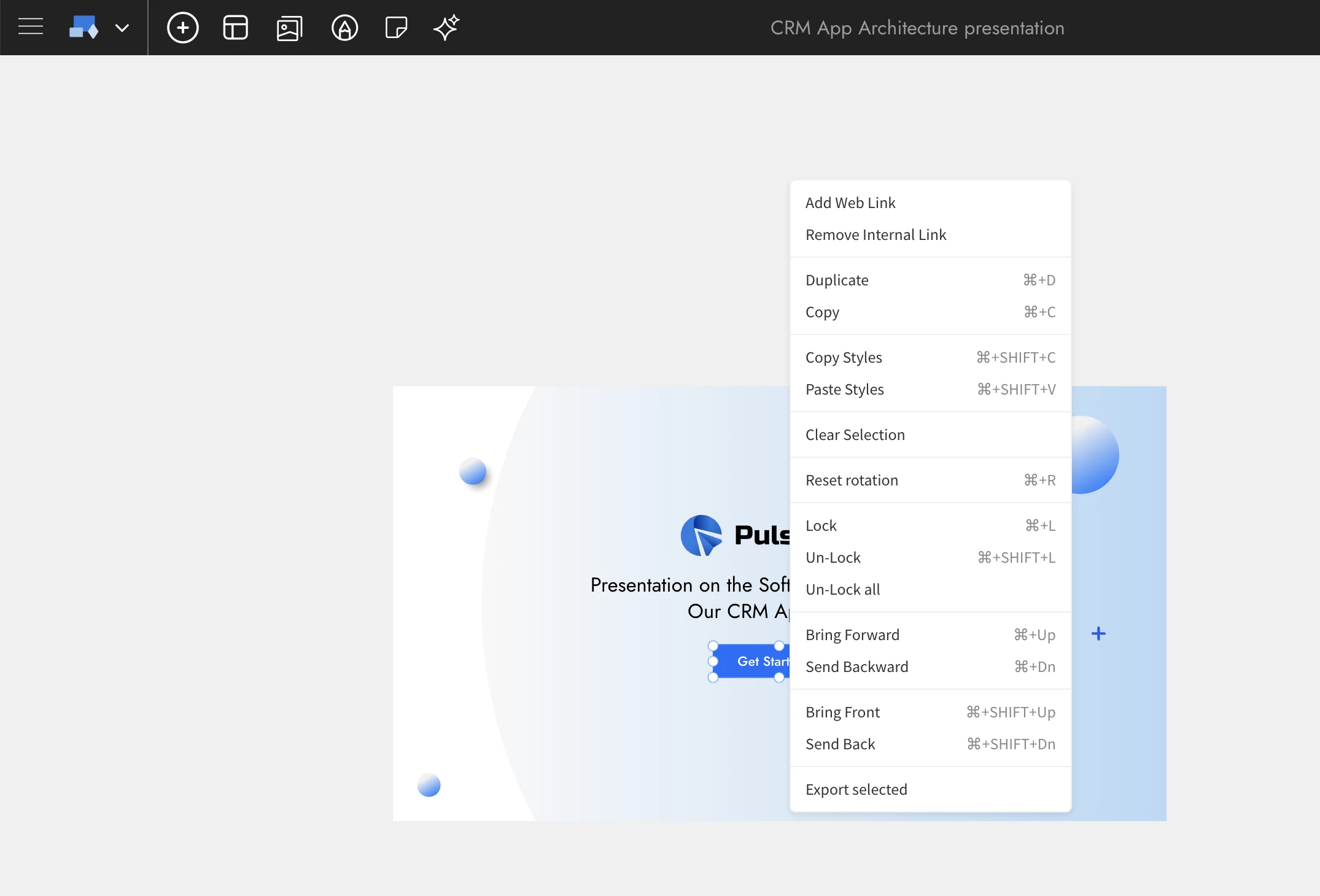
To get started, right-click on any supported component such as a button, sticky note, section, text box, or frame. You’ll see two new options in the context menu:
- Add Web Link: Create a hyperlink from your component to any external webpage or online resource.
- Add Internal Link: Connect one component to another within your whiteboard. You can link to large components like sections, mind maps, frames, or documents for presentation-style navigation.
By combining multiple internal links, you can establish a non-linear navigation path across different parts of your whiteboard, helping viewers explore ideas fluidly rather than following a rigid slide sequence.
How to Navigate Between Components
Once interactions are set up, click on any interactive component or use the right-arrow shortcut key to follow its link. IdeaBoard will automatically zoom and scroll to the target area, fitting it perfectly to your screen.
To return, press the left-arrow key—IdeaBoard remembers your navigation history, allowing seamless back-and-forth movement between connected components. This makes exploring complex boards effortless and immersive.
Use Cases for Interactive Whiteboards
Non-Linear Presentations:
Present ideas dynamically by jumping between sections based on audience input instead of following a fixed slide order. Perfect for brainstorming sessions, workshops, and agile reviews.
Interactive Storytelling and Product Demos:
Create narrative-style walkthroughs of user journeys or design concepts. Link wireframes, mockups, or idea clusters to demonstrate flow and context.
Flowcharts and Architecture Diagrams:
Showcase complex systems or workflows with interactive navigation. Link nodes, subsystems, or related diagrams to zoom into deeper layers of your architecture or process visualization.
Interactive Knowledge Maps and Documentation:
Build connected knowledge bases or process documents where each note or component links to supporting visuals or references, helping teams explore topics intuitively.
Training and Educational Boards:
Teachers and trainers can design guided learning paths—linking lessons, exercises, and examples into a structured yet explorative format that keeps learners engaged.
Sample demo: https://app.mockflow.com/iview/crmpresent#/mode/view
Final Note
With Interactions, IdeaBoard evolves from a whiteboard into an interactive presentation and storytelling platform. Whether you’re explaining workflows, teaching concepts, or mapping ideas, you can now guide your audience through your whiteboard with clarity, motion, and intent.
Now create Non-Linear Presentations with Interactions in IdeaBoard
IdeaBoard now introduces interactive navigation between components, letting you craft dynamic, non-linear presentations with smooth zoom and scroll transitions. Engage your audience or team by turning any whiteboard into a clickable, guided experience perfect for storytelling, brainstorming walkthroughs, or product demos.
Nov 14 - Change 1
Nov 14 - Change 1 desc